
USB RFID reader may work perfectly during initial testing but behave differently after it is connected to a business computer, inventory application, or production workstation. Sometimes the computer cannot detect the device. In other cases, the reader connects successfully but fails to identify tags or send the expected data to the software.
These problems do not always mean the RFID reader is defective. The cause may be an incompatible tag, an incorrect output mode, a missing driver, an unsuitable reading environment, or a software configuration issue.
A structured troubleshooting process helps purchasing teams, engineers, and system integrators identify the source of a problem before replacing hardware. This guide covers common USB RFID reader issues, practical checks, and questions to ask a supplier when additional technical support is needed.
The device may not appear in the expected system interface, the application may report that no reader is available, or the reader may connect and disconnect repeatedly.
Next, check how the reader is designed to communicate with the computer. A reader using HID keyboard emulation may appear as a human interface device, while a virtual COM model may require a compatible driver and appear as a serial port. SDK-based devices may also require specific software components.
Open the operating system’s device management tools and check whether the reader appears correctly. Look for warning symbols, driver errors, or repeated connection changes.
If the reader is not recognized, verify the manufacturer’s installation instructions before installing or removing drivers.
Do not assume that every USB RFID reader uses the same driver or appears under the same device category.
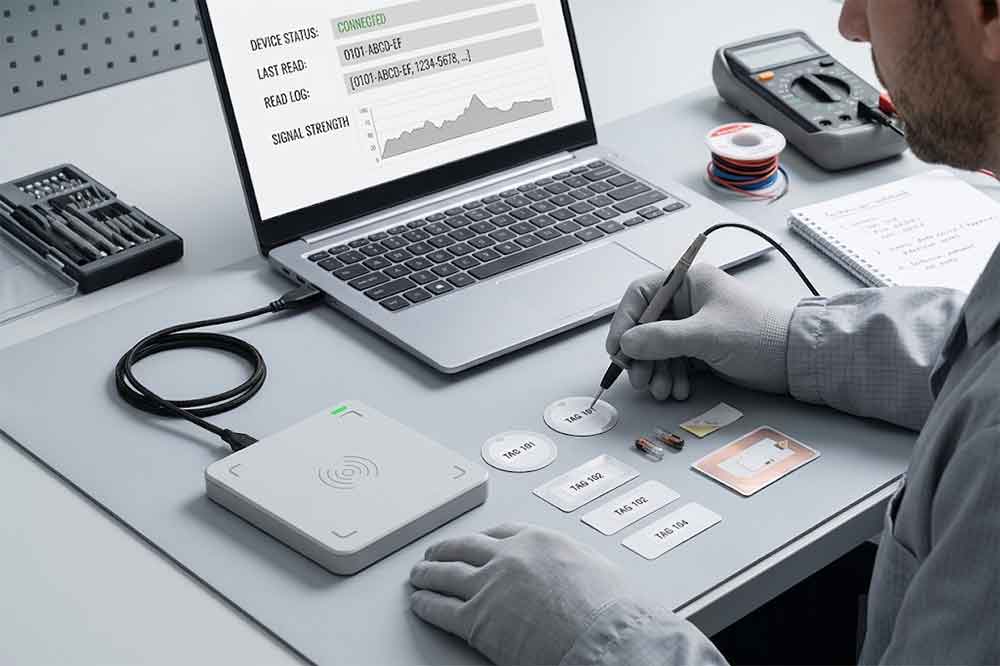
For example, an LF reader, an HF reader operating at 13.56 MHz, and a UHF reader serve different tag families and applications. Before testing, confirm that the tag type is supported by the reader.
Also check whether the tag is damaged, incorrectly positioned, or unsuitable for the intended application.
Do not judge performance using only one tag or one position. Test multiple known-good tags and record the conditions under which each one can be read.
Use a tag designed for the actual material where necessary, and test it in the intended installation environment.
For more detail, see our guide to USB RFID reader reading range.
The key is to distinguish between reading the tag and delivering its data to the target application.
Open a simple text editor, select the input area, and scan a known tag. If the tag ID appears there, the reader’s basic output path may be working, and the issue may be related to the target application or its configuration.
For virtual COM communication, confirm that the correct port is selected and that the application uses the protocol supported by the reader.
For SDK-based integration, verify that the correct library, device settings, and supported functions are being used.
Check whether the reader adds a prefix, suffix, delimiter, or line ending. These settings can affect how the application parses the received data.
Our guide to USB RFID reader data output modes explains the differences between HID, virtual COM, and software-based integration.
First, establish which tag field the project requires. Depending on the tag and reader, the application may use a UID, EPC, or another supported memory field. These identifiers are not interchangeable in every application.
Next, compare the reader output with the tag information available through a known-good test tool or the manufacturer’s software. Check whether the output has been converted, shortened, padded, or formatted differently.
If the project reads user memory or performs write operations, verify that the selected tag supports the required operation and that the correct memory area and access conditions are being used.
Avoid changing database records simply to compensate for an unexplained output difference. Identify the expected data format first, then decide whether the reader configuration or application logic needs adjustment.
The correct response depends on the application.
For example, an asset registration workflow may need to create only one record when a tag is presented. A monitoring system, on the other hand, may need to record repeated observations over time.
If filtering must be performed in software, the application may temporarily ignore repeated reads of the same identifier within a defined time window. The appropriate interval depends on the workflow and should be tested carefully.
For example, suppressing repeated reads for too long could hide a legitimate second scan. A system that records movement events may need different logic from a simple check-in form.
Define the required behavior before adjusting reader settings.
Start by reproducing the problem under controlled conditions. Test the same tag, reader, distance, and orientation in a relatively clear environment. Then introduce the actual product, mounting position, and surrounding materials.
For UHF systems, antenna orientation, tag placement, metal, liquid, and nearby RF activity can affect results. For other frequencies, coil alignment, coupling, tag construction, and the intended operating distance may also matter.
Check whether the problem affects all tags or only a specific tag type. If only certain tags fail, investigate tag compatibility and placement before assuming that the reader itself is faulty.
Where possible, document the successful and unsuccessful reading positions. This information is more useful than a general report that the reader has a short range.
These problems do not always mean the RFID reader is defective. The cause may be an incompatible tag, an incorrect output mode, a missing driver, an unsuitable reading environment, or a software configuration issue.
A structured troubleshooting process helps purchasing teams, engineers, and system integrators identify the source of a problem before replacing hardware. This guide covers common USB RFID reader issues, practical checks, and questions to ask a supplier when additional technical support is needed.
The Computer Does Not Recognize the USB RFID Reader
One of the first problems users encounter is that the computer does not appear to recognize the connected reader.The device may not appear in the expected system interface, the application may report that no reader is available, or the reader may connect and disconnect repeatedly.
What to check first
Start with the physical connection. Inspect the USB cable, connector, and port. If possible, test another suitable USB port and a known-good cable. Avoid introducing additional USB hubs during initial troubleshooting, as they can add another variable.Next, check how the reader is designed to communicate with the computer. A reader using HID keyboard emulation may appear as a human interface device, while a virtual COM model may require a compatible driver and appear as a serial port. SDK-based devices may also require specific software components.
Open the operating system’s device management tools and check whether the reader appears correctly. Look for warning symbols, driver errors, or repeated connection changes.
If the reader is not recognized, verify the manufacturer’s installation instructions before installing or removing drivers.
When to contact the supplier
Provide the reader model, operating system version, connection method, and any error message. A screenshot of the device status can help technical support narrow down the issue.Do not assume that every USB RFID reader uses the same driver or appears under the same device category.
The Reader Connects but Cannot Read RFID Tags
A reader may connect normally while failing to identify a tag. In this situation, the USB connection may be working correctly, but the RFID reading conditions need further investigation.Check frequency and tag compatibility
RFID tags operate at specific frequency bands and use particular air-interface protocols. A reader designed for one frequency does not automatically support tags designed for another.For example, an LF reader, an HF reader operating at 13.56 MHz, and a UHF reader serve different tag families and applications. Before testing, confirm that the tag type is supported by the reader.
Also check whether the tag is damaged, incorrectly positioned, or unsuitable for the intended application.
Check distance and orientation
Move the tag closer to the reader and test it at several positions. For a close-range reader, the intended reading distance may be only a few centimeters. A UHF reader may support a different working range, depending on its antenna, tag, settings, and environment.Do not judge performance using only one tag or one position. Test multiple known-good tags and record the conditions under which each one can be read.
Consider the surrounding materials
Metal surfaces and liquids can affect RFID performance, particularly in UHF applications. A tag that works well in free air may perform differently when attached to a metal tool, liquid container, or other product.Use a tag designed for the actual material where necessary, and test it in the intended installation environment.
For more detail, see our guide to USB RFID reader reading range.
RFID Data Is Read but Does Not Appear in the Application
This problem can be confusing because the reader may successfully identify a tag, yet the expected information does not appear in the software.The key is to distinguish between reading the tag and delivering its data to the target application.
Check the output mode
In HID keyboard-emulation mode, tag data is usually sent to the active input field. If the cursor is in another window, the data may appear somewhere unexpected or seem to disappear.Open a simple text editor, select the input area, and scan a known tag. If the tag ID appears there, the reader’s basic output path may be working, and the issue may be related to the target application or its configuration.
For virtual COM communication, confirm that the correct port is selected and that the application uses the protocol supported by the reader.
For SDK-based integration, verify that the correct library, device settings, and supported functions are being used.
Check the data format
The application may expect a different representation of the tag ID. For example, it may require a hexadecimal identifier while the reader is configured to output another format.Check whether the reader adds a prefix, suffix, delimiter, or line ending. These settings can affect how the application parses the received data.
Our guide to USB RFID reader data output modes explains the differences between HID, virtual COM, and software-based integration.
The Reader Sends Incorrect or Incomplete Tag Data
Sometimes the reader outputs data, but the value does not match what the application expects.First, establish which tag field the project requires. Depending on the tag and reader, the application may use a UID, EPC, or another supported memory field. These identifiers are not interchangeable in every application.
Next, compare the reader output with the tag information available through a known-good test tool or the manufacturer’s software. Check whether the output has been converted, shortened, padded, or formatted differently.
If the project reads user memory or performs write operations, verify that the selected tag supports the required operation and that the correct memory area and access conditions are being used.
Avoid changing database records simply to compensate for an unexplained output difference. Identify the expected data format first, then decide whether the reader configuration or application logic needs adjustment.
The Reader Detects the Same Tag Repeatedly
Repeated reads are common in RFID systems. A reader may continuously detect a tag while the tag remains within its reading field. This behavior is not necessarily a hardware fault.The correct response depends on the application.
For example, an asset registration workflow may need to create only one record when a tag is presented. A monitoring system, on the other hand, may need to record repeated observations over time.
Practical ways to handle duplicate reads
Check whether the reader supports a trigger mode, inventory timing controls, or duplicate-suppression options. Available functions vary by model.If filtering must be performed in software, the application may temporarily ignore repeated reads of the same identifier within a defined time window. The appropriate interval depends on the workflow and should be tested carefully.
For example, suppressing repeated reads for too long could hide a legitimate second scan. A system that records movement events may need different logic from a simple check-in form.
Define the required behavior before adjusting reader settings.
Reading Performance Is Unstable
A reader may identify tags reliably in one location but miss them in another. This can happen after equipment is installed near metal structures, electrical devices, cables, or other sources of interference.Start by reproducing the problem under controlled conditions. Test the same tag, reader, distance, and orientation in a relatively clear environment. Then introduce the actual product, mounting position, and surrounding materials.
For UHF systems, antenna orientation, tag placement, metal, liquid, and nearby RF activity can affect results. For other frequencies, coil alignment, coupling, tag construction, and the intended operating distance may also matter.
Check whether the problem affects all tags or only a specific tag type. If only certain tags fail, investigate tag compatibility and placement before assuming that the reader itself is faulty.
Where possible, document the successful and unsuccessful reading positions. This information is more useful than a general report that the reader has a short range.