
Connecting a USB RFID reader to a computer is usually straightforward. Getting it to work reliably inside an existing application takes more planning.
A developer may need to send tag IDs to an inventory database, register employee cards in a management system, connect a reader to a checkout application, or build a custom desktop tool. The right integration method depends on the reader’s communication interface and the functions exposed by its manufacturer.
An RFID Reader SDK can simplify this work by providing documented functions, programming libraries, sample projects, and device-control tools. An API defines how the application exchanges commands and data with the reader or its software interface.
Before choosing a reader, it is worth checking what the SDK actually supports. Two USB readers may look similar but expose very different programming options.
When evaluating hardware for a development project, explore our range of USB RFID readers for software integration and compare the available interfaces with your application requirements.”
Depending on the product, it may include device libraries, API documentation, code examples, configuration utilities, driver packages, and test applications. Some SDKs support only basic tag reading, while others expose additional functions such as reader configuration, writing supported tag memory, antenna control, or inventory operations.
The available functions depend on the reader model and RFID technology. An SDK for one reader should not be assumed to work with another manufacturer’s hardware.
An API defines the commands, functions, or interfaces through which software interacts with a device. An SDK usually packages the API with additional tools that help developers build and test an application.
For example, an API might provide a function for retrieving a scanned card ID. The SDK may include that function, a sample desktop application, documentation, and instructions for connecting to the reader.
For a development team working under a tight schedule, usable sample code and clear error descriptions can be just as important as the API itself.
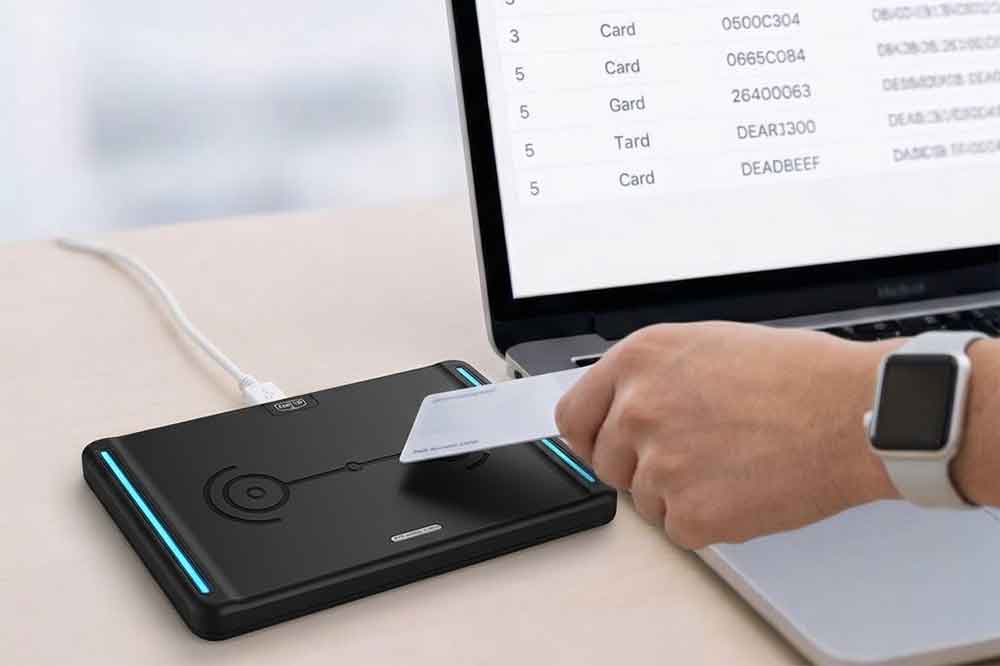
This approach is convenient for simple workflows. An employee can scan an ID card into a registration form, or a warehouse operator can scan a tagged item into an inventory application.
The limitation is control. Keyboard emulation may not expose advanced reader functions, and the application must handle input focus, formatting, and repeated scans appropriately.
This method can provide more control over communication and data processing than keyboard emulation, but the exact command format, baud rate, and configuration requirements depend on the device.
Developers should verify the manufacturer’s instructions rather than assuming all serial RFID readers use the same protocol.
Before committing to a hardware model, ask for the SDK package, API reference, sample code, and a list of supported operating systems and programming languages. Confirm that the documentation matches the exact model and firmware version being evaluated.
This check helps avoid choosing hardware that works perfectly in a demonstration utility but cannot be integrated into the target application.
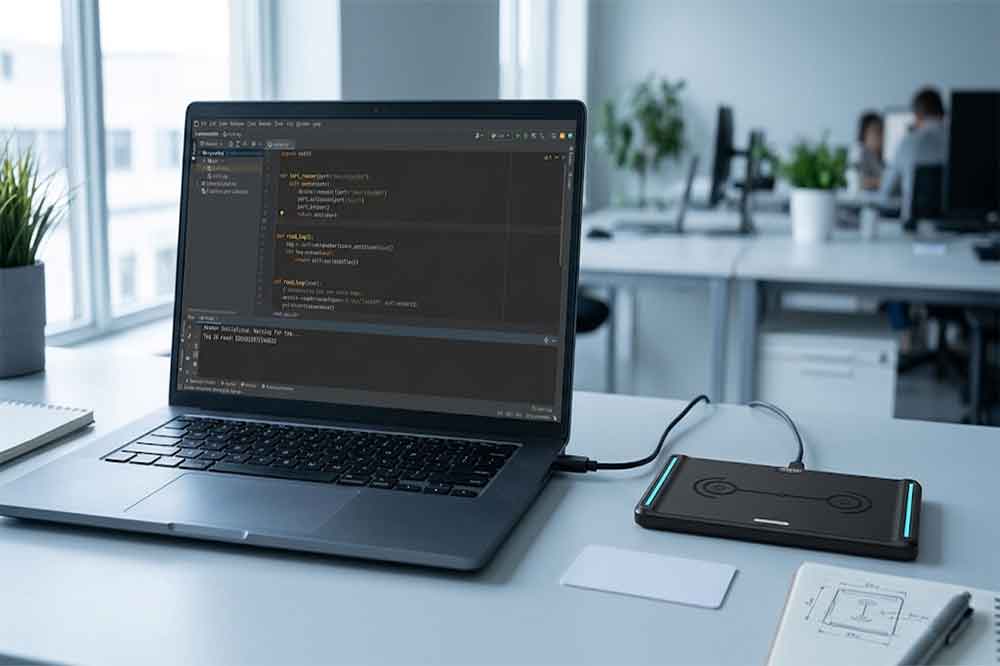
For a serial-based reader, verify that the expected port appears. For a keyboard-emulation device, test whether scanning a card produces the expected input. If a manufacturer supplies a demo utility, use it to confirm basic operation before writing application code.
Separating hardware testing from software development makes faults easier to locate.
The application should confirm that the device is available before attempting to read tags. Where supported, it should also check the reader’s status and report connection failures clearly.
Initialization should not depend on an assumption that the device is always connected. USB cables can be unplugged, ports can change, and applications may be restarted while the reader remains powered.
A basic workflow may look like this:
For systems that process multiple scans, define how repeated reads should be handled. A reader may report the same tag several times while it remains in the reading field. Whether those events should be ignored, counted, or treated as separate transactions depends on the application.
For an inventory system, the application might receive a tag ID, look up the associated item, and update its stock record. In an employee registration system, the same general process can associate a scanned card with a user record.
For larger systems, it is often useful to separate the reader communication layer from the business logic. This makes it easier to replace a reader model, change the database, or modify the workflow without rewriting the entire application.
When integrating with ERP, warehouse management, POS, or asset tracking software, confirm the required data format and interface with the receiving system. The reader SDK does not automatically provide integration with every third-party platform.
Test the reader with different supported tags, repeated presentations, long operating sessions, application restarts, and USB disconnections. Check how the software behaves when a tag cannot be read or the database is unavailable.
For unattended systems, also consider logging, reconnection behavior, and recovery after an unexpected interruption. These details often determine whether the finished application is reliable outside the development environment.
A developer may need to send tag IDs to an inventory database, register employee cards in a management system, connect a reader to a checkout application, or build a custom desktop tool. The right integration method depends on the reader’s communication interface and the functions exposed by its manufacturer.
An RFID Reader SDK can simplify this work by providing documented functions, programming libraries, sample projects, and device-control tools. An API defines how the application exchanges commands and data with the reader or its software interface.
Before choosing a reader, it is worth checking what the SDK actually supports. Two USB readers may look similar but expose very different programming options.
When evaluating hardware for a development project, explore our range of USB RFID readers for software integration and compare the available interfaces with your application requirements.”
What Is RFID Reader SDK?
An RFID Reader SDK, or Software Development Kit, is a collection of development resources for building software that communicates with RFID hardware.Depending on the product, it may include device libraries, API documentation, code examples, configuration utilities, driver packages, and test applications. Some SDKs support only basic tag reading, while others expose additional functions such as reader configuration, writing supported tag memory, antenna control, or inventory operations.
The available functions depend on the reader model and RFID technology. An SDK for one reader should not be assumed to work with another manufacturer’s hardware.
SDK vs. API: Understanding the Difference
The terms are related, but they are not interchangeable.An API defines the commands, functions, or interfaces through which software interacts with a device. An SDK usually packages the API with additional tools that help developers build and test an application.
For example, an API might provide a function for retrieving a scanned card ID. The SDK may include that function, a sample desktop application, documentation, and instructions for connecting to the reader.
For a development team working under a tight schedule, usable sample code and clear error descriptions can be just as important as the API itself.
How USB RFID Readers Communicate With Software
The first technical decision is understanding how the reader sends information to the computer. USB describes the physical connection, but it does not tell you exactly how application software receives tag data.
USB HID and Keyboard Emulation
Some USB RFID readers behave like a keyboard. When a card is presented, the reader sends its identifier as simulated keystrokes into the active input field.This approach is convenient for simple workflows. An employee can scan an ID card into a registration form, or a warehouse operator can scan a tagged item into an inventory application.
The limitation is control. Keyboard emulation may not expose advanced reader functions, and the application must handle input focus, formatting, and repeated scans appropriately.
Virtual COM Port and Serial Communication
Some readers expose a virtual serial port through USB. The application communicates through that port using the manufacturer’s documented commands or supported serial protocol.This method can provide more control over communication and data processing than keyboard emulation, but the exact command format, baud rate, and configuration requirements depend on the device.
Developers should verify the manufacturer’s instructions rather than assuming all serial RFID readers use the same protocol.
Manufacturer-Specific SDKs and APIs
A dedicated SDK may be the better choice when the application needs explicit device control, structured tag data, status information, or more advanced reading operations.Before committing to a hardware model, ask for the SDK package, API reference, sample code, and a list of supported operating systems and programming languages. Confirm that the documentation matches the exact model and firmware version being evaluated.
How to Integrate USB RFID Reader Step by Step
Step 1: Confirm Hardware and Software Compatibility
Start by collecting the basic technical requirements:- Reader model and supported RFID frequency
- USB interface and communication method
- Supported operating systems
- Available SDK versions and programming languages
- Driver and runtime dependencies
- Required tag-reading or writing functions
This check helps avoid choosing hardware that works perfectly in a demonstration utility but cannot be integrated into the target application.
Step 2: Install the SDK and Connect the Reader
Install the appropriate driver or development package, following the supplier’s instructions. Connect the reader and check whether the operating system recognizes it.For a serial-based reader, verify that the expected port appears. For a keyboard-emulation device, test whether scanning a card produces the expected input. If a manufacturer supplies a demo utility, use it to confirm basic operation before writing application code.
Separating hardware testing from software development makes faults easier to locate.
Step 3: Initialize the Reader
Use the documented SDK function or communication procedure to establish a connection.The application should confirm that the device is available before attempting to read tags. Where supported, it should also check the reader’s status and report connection failures clearly.
Initialization should not depend on an assumption that the device is always connected. USB cables can be unplugged, ports can change, and applications may be restarted while the reader remains powered.
Step 4: Read RFID Tag Data
Once the connection is working, implement the documented tag-reading function.A basic workflow may look like this:
- Establish communication with the reader.
- Configure the supported reading mode.
- Start reading or wait for a tag event.
- Receive the tag identifier.
- Validate and process the returned data.
- Send the result to the next application component.
For systems that process multiple scans, define how repeated reads should be handled. A reader may report the same tag several times while it remains in the reading field. Whether those events should be ignored, counted, or treated as separate transactions depends on the application.
Step 5: Connect the Reader to Business Software
The reader usually forms only one part of the complete application.For an inventory system, the application might receive a tag ID, look up the associated item, and update its stock record. In an employee registration system, the same general process can associate a scanned card with a user record.
For larger systems, it is often useful to separate the reader communication layer from the business logic. This makes it easier to replace a reader model, change the database, or modify the workflow without rewriting the entire application.
When integrating with ERP, warehouse management, POS, or asset tracking software, confirm the required data format and interface with the receiving system. The reader SDK does not automatically provide integration with every third-party platform.
Step 6: Test Before Deployment
A successful single scan does not establish that an integration is ready for daily use.Test the reader with different supported tags, repeated presentations, long operating sessions, application restarts, and USB disconnections. Check how the software behaves when a tag cannot be read or the database is unavailable.
For unattended systems, also consider logging, reconnection behavior, and recovery after an unexpected interruption. These details often determine whether the finished application is reliable outside the development environment.